Most shops we work with have never recorded attendance in any form. No punch card, no sign-in book, nothing. So when clock-in gets switched on, the questions are not about features.
They are: what does my team have to do, will they resist it, can someone cheat it, and what do I actually look at afterwards.
This is that walkthrough, in the order it happens.
Before you start: everyone needs their own account
Clock-ins are recorded against a person's own bookit account. There is no shared PIN and no way to record someone who has no account — a shared-device PIN was designed and then dropped, on purpose, because the moment two people share a login the record stops proving anything.
So the actual first job is Team: every person who will clock in needs to exist there with their own login. This is usually the only part that takes a day or two, because it involves getting five people to open an app. Do it before you announce anything else.
A manager with full shift access can clock someone in on their behalf — it shows as Clock in for their name — but the entry still lands against the right person's account. That is your fallback for a lost phone, not a way to skip accounts.
The 20-minute setup
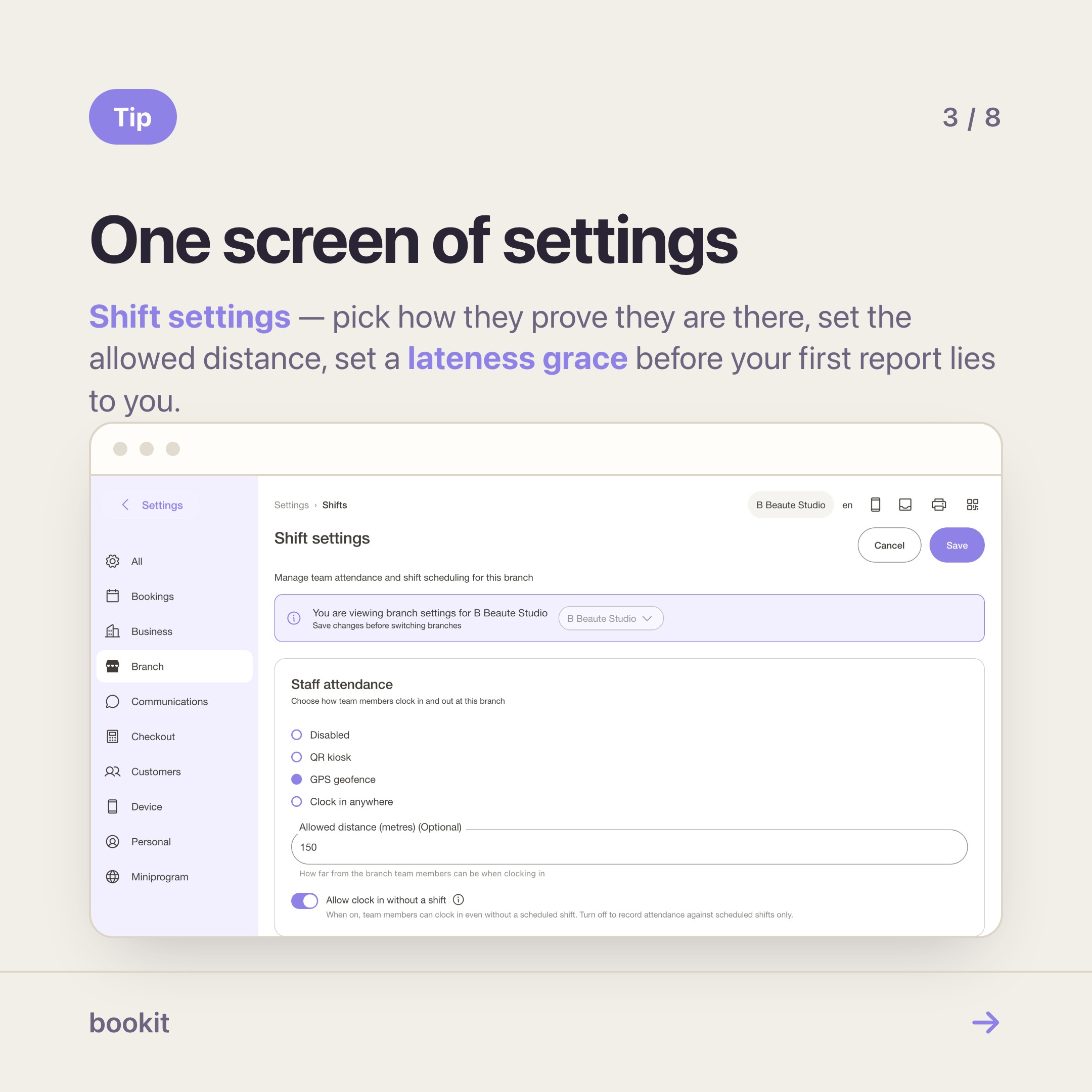
Settings, then your branch, then Shift settings.
1. Choose how they prove they are there
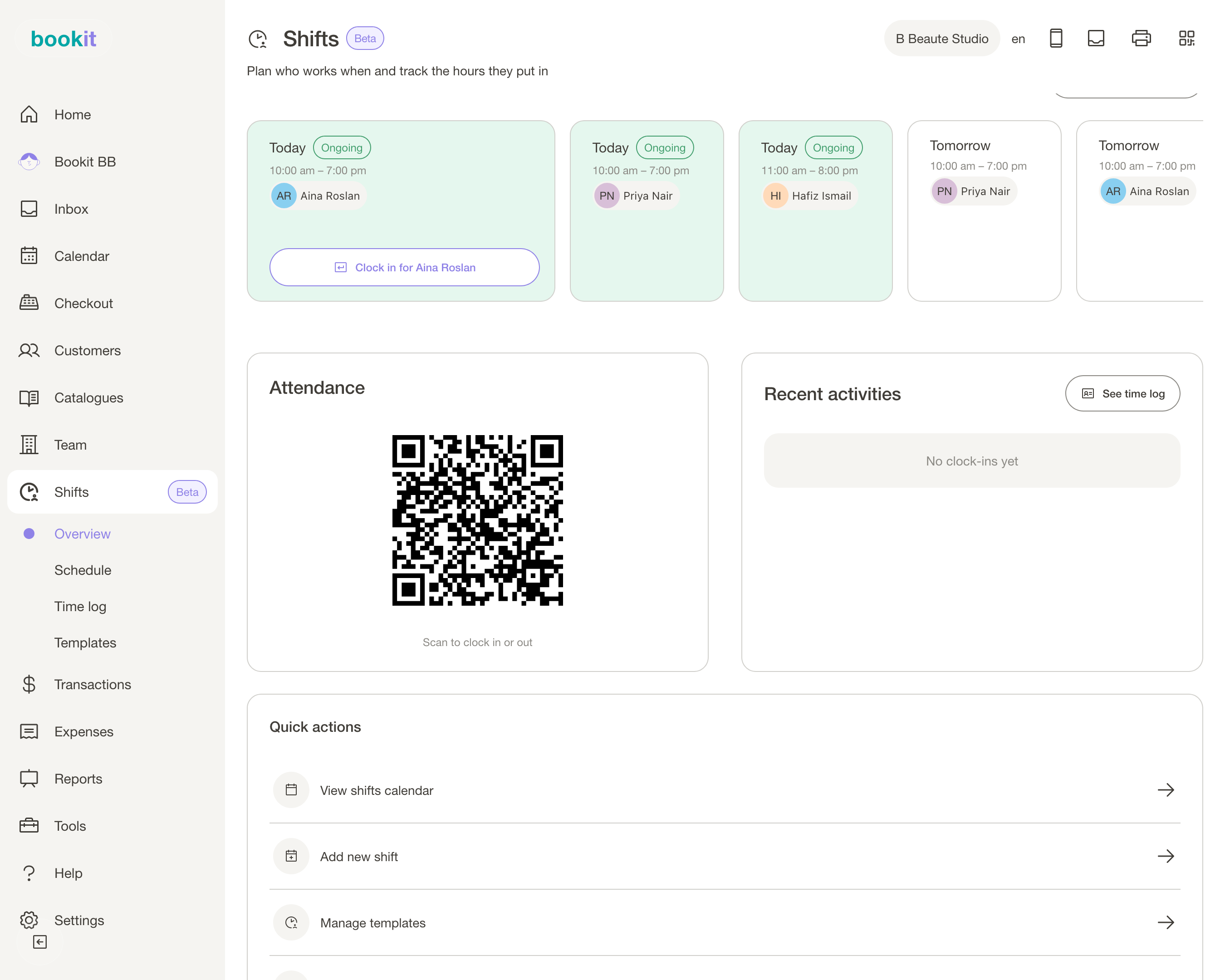
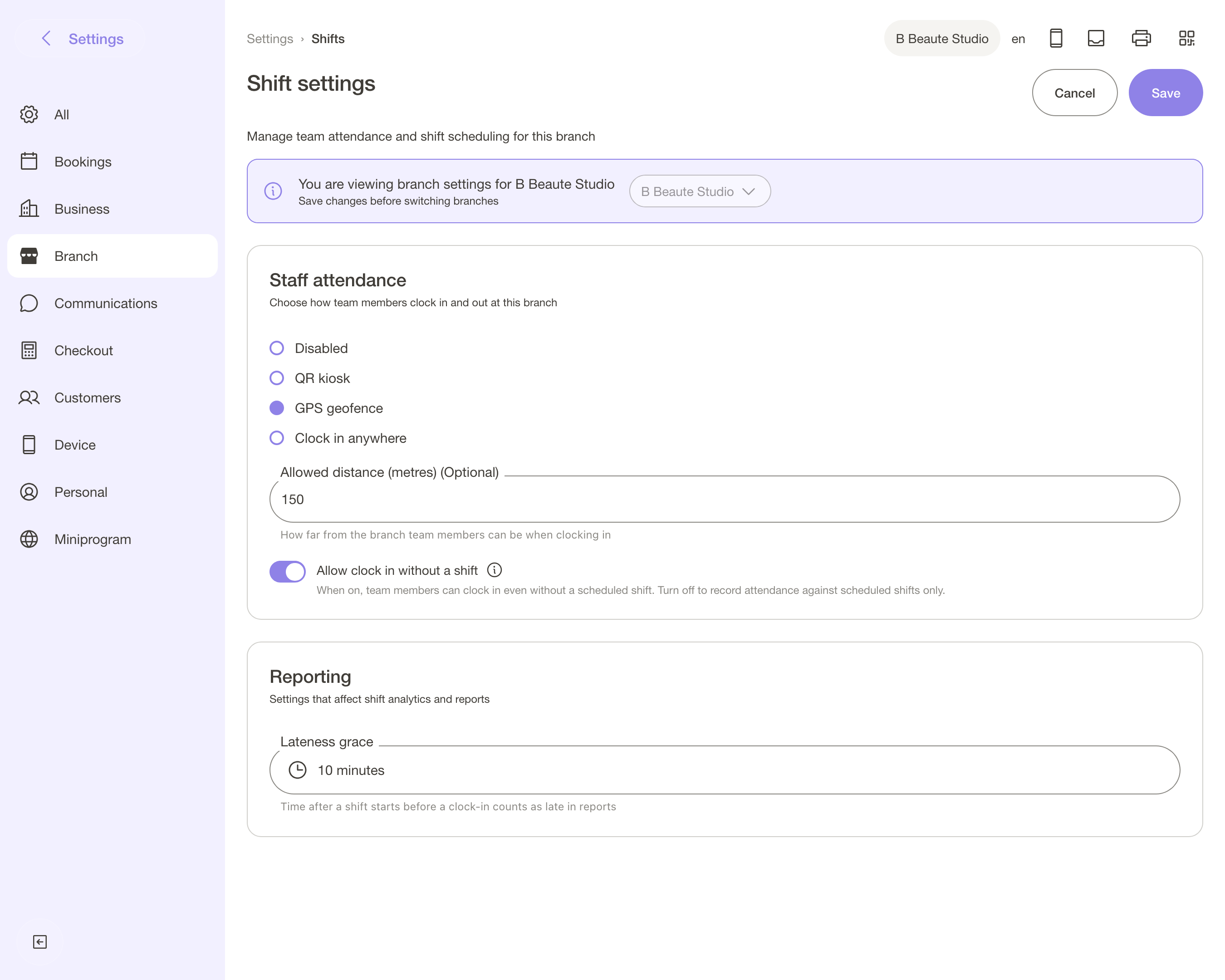
Under Staff attendance, four options:
| Mode | What happens | Best for |
|---|---|---|
| Disabled | Nobody can clock in. Roster only | Where every branch starts |
| QR kiosk | They scan a code on a screen at your counter | A shop with a counter and a spare tablet |
| GPS geofence | They clock in on their phone, must be near the branch | No spare device, or a team already on their phones |
| Clock in anywhere | No check at all | Remote or long-trusted people |
Until you change this, it is Disabled, and your team just see a card saying attendance is switched off. So this is the setting that switches the whole thing on.
2. If you chose GPS
Set the Allowed distance (metres) — the default is 150. One thing to check first: your branch address must be saved. If it has never been set, there is nothing to measure against, and the clock-in is accepted and flagged for review rather than blocked.
That is by design, so nobody is locked out by your missing data, but it means a geofence with no address is not a geofence.
3. If you chose QR kiosk
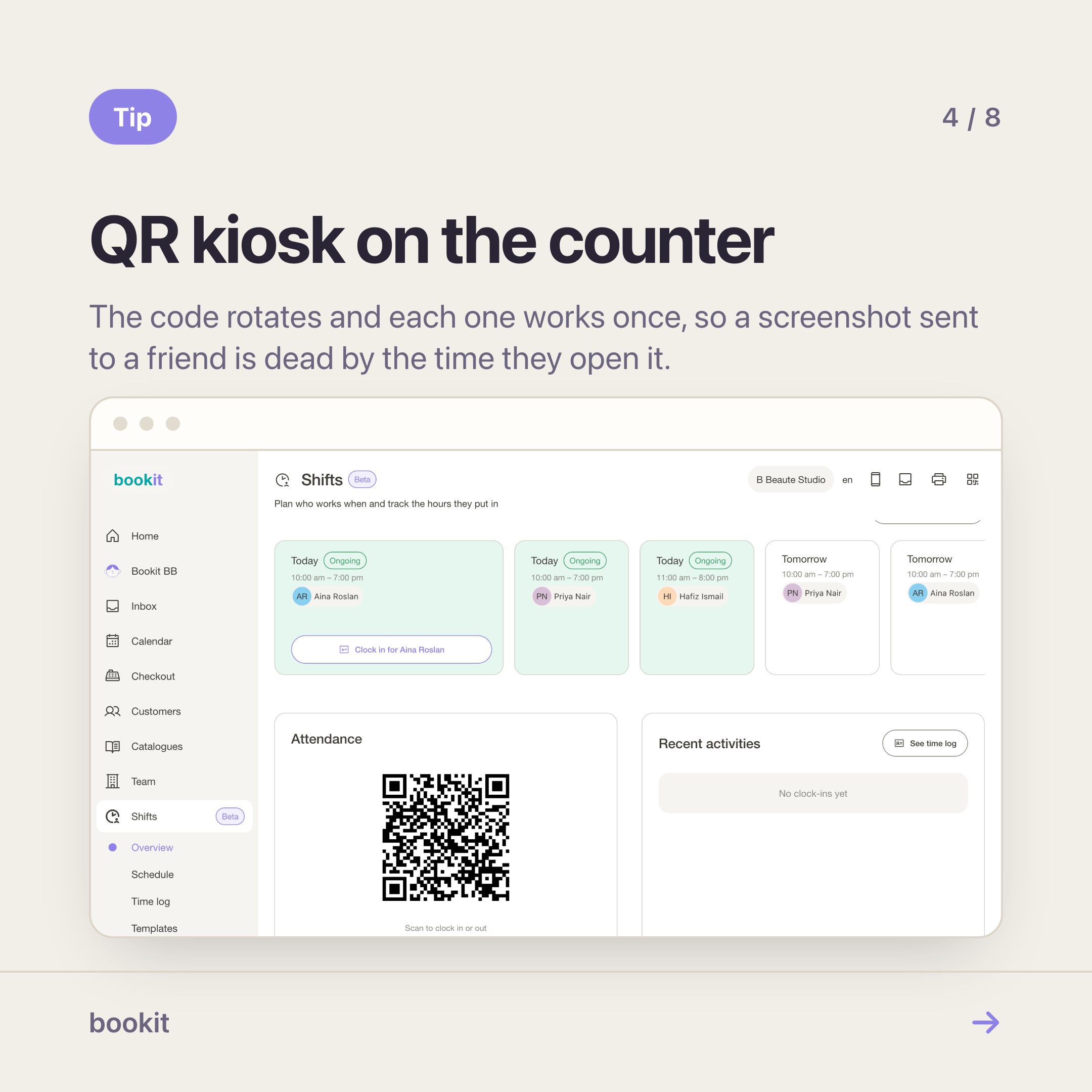
Go to Team, open the team member whose account will live on the shared device, and turn on Kiosk account. On that device, open Shifts, then Overview, then Open attendance kiosk. It goes full screen and shows a rotating code. Leave it on the counter.
4. Set a lateness grace
Under Reporting, set Lateness grace. It is No grace until you change it, which means a clock-in 90 seconds after the start counts as late and your first month's report will look worse than reality. Five or ten minutes is normal.
5. Decide about punches with no shift
Allow clock in without a shift decides whether someone can clock in on a day you never rostered them. Leave it on at first — it catches the cover shift you forgot to add. Those punches still record hours; they show as unlinked and never count towards overtime. Turn it off later if you want the roster to be the boundary.
That is the setup. Everything below is what happens afterwards.
What your team actually see
They open bookit and select Clock in. It is on the first tile of their dashboard, on the Shifts overview, and on the shift itself, so nobody has to hunt for it.
They get a Confirm clock-in screen that explains your branch's rule in plain words. In QR mode they then select Scan QR code and point the camera at your counter screen. In GPS mode bookit finds their location first. Clocking out is one tap, with no second step.
That is the whole experience. The reason it goes down easily in most shops is that it replaces nothing — there was no old system anyone liked.
The teams that push back are usually the ones told about it on the morning it appears. Tell them the week before, and say what it is for: so nobody's hours depend on anyone's memory at month end.
How secure is it, honestly
Worth being straight about this, because the answer is "hard to fake, not impossible", and any vendor who says otherwise is selling.
QR kiosk is the strongest. The code rotates constantly, each one is valid for about a minute, and each one works exactly once. A screenshot sent to a friend at home is useless — by the time they open it, it is dead. The remaining hole is real but narrow: someone physically at your counter could relay a live code within its short window, and their colleague would clock in under their own name from elsewhere. That takes deliberate coordination, every single day, and it leaves a record with their name on it.
GPS carries the usual risk. A determined person can fake a phone's location. Most people cannot be bothered; the point of the geofence is to make casual "I'll clock in from the car park at 9 and arrive at 9:20" not work.
Clock in anywhere checks nothing, and is named that way so nobody mistakes it for a control.
The honest framing for your team: this is not surveillance and it will not catch a person who has decided to cheat you. It removes the grey area where two people genuinely remember a month differently.
Week one: expect to fix entries
Somebody will forget to clock out. Somebody will clock in at 9:02 and swear they were there at 8:55. Somebody's phone will be flat.
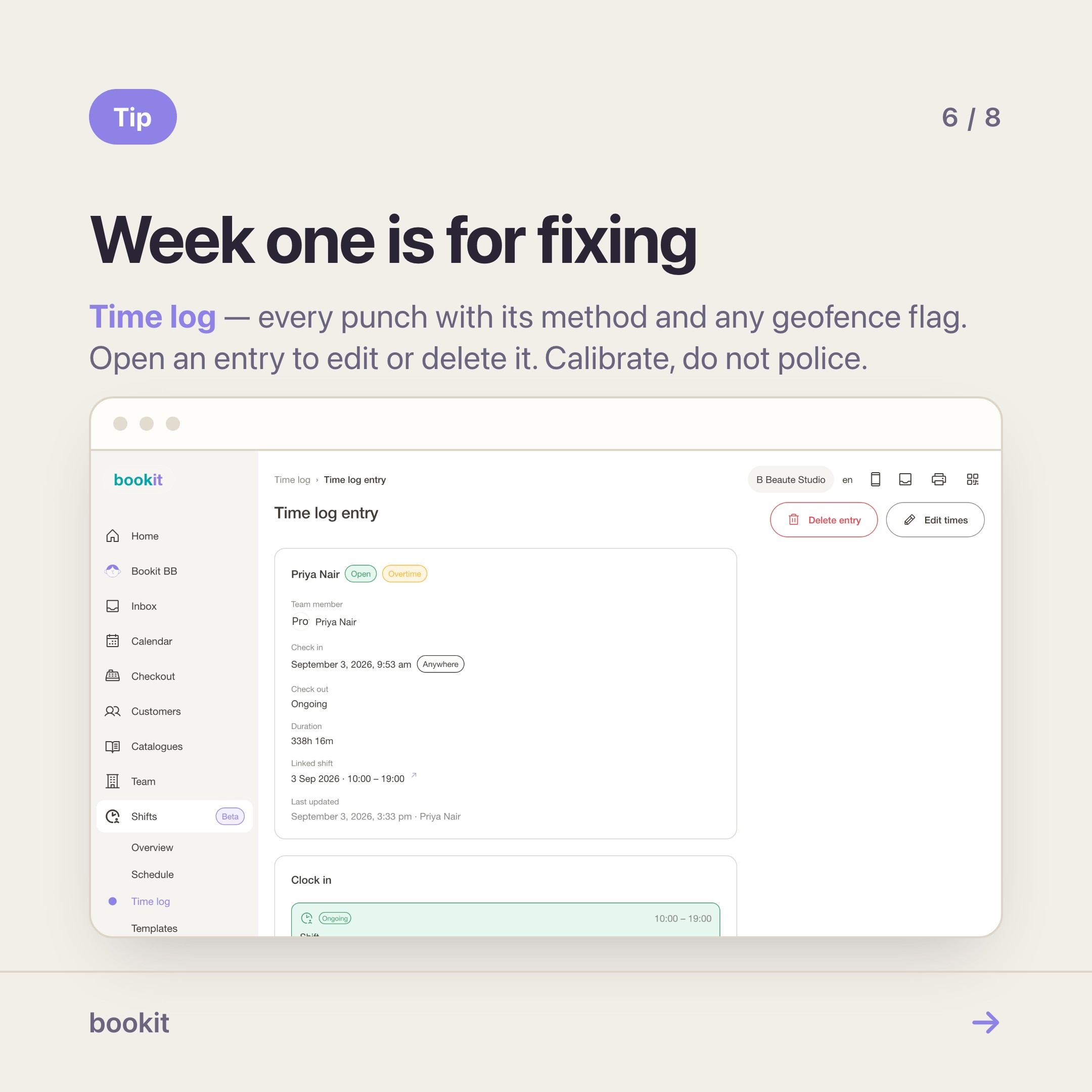
Shifts, then Time log, lists every clock-in and clock-out with the method used and any geofence flag. Open an entry to edit or delete it. Fix things freely in the first fortnight — you are calibrating, not policing, and an entry corrected once is worth more than a month of people not trusting the numbers.
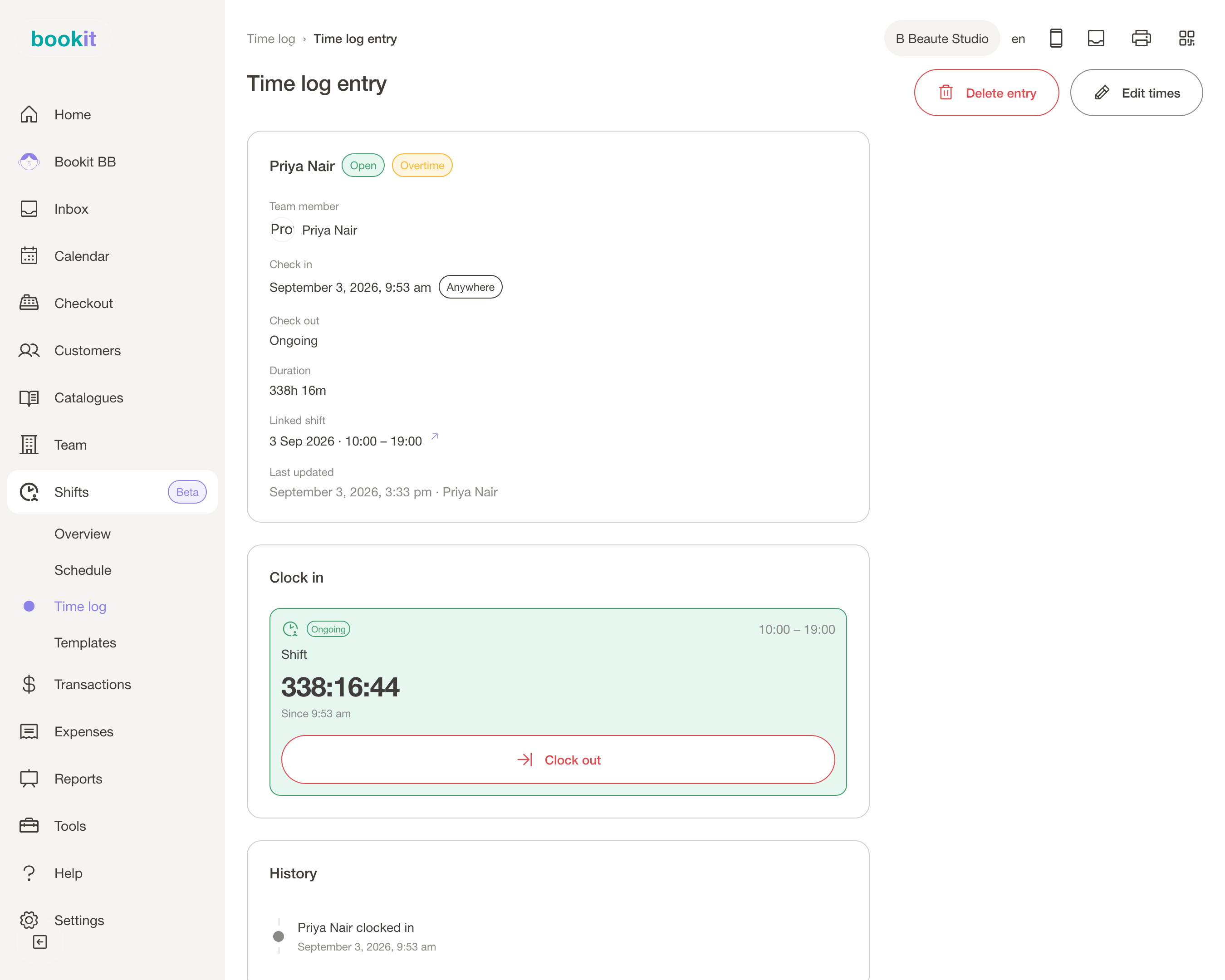
Watch Open clock-ins on the overview. Nobody is reminded to clock out — there are no shift notifications in bookit at all — so a forgotten punch just sits there until you close it.
Reading the report at month end
Two places, and they answer different questions.
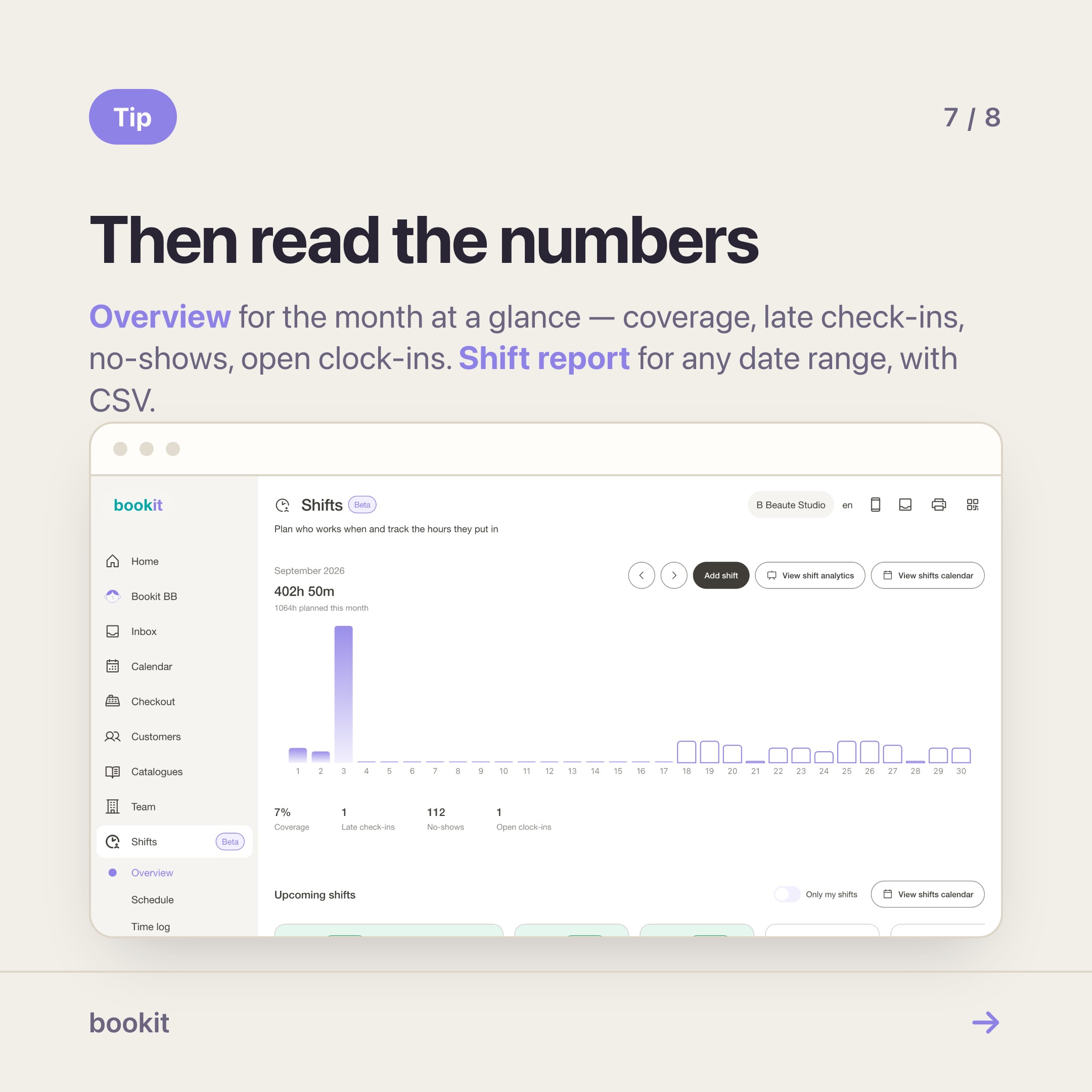
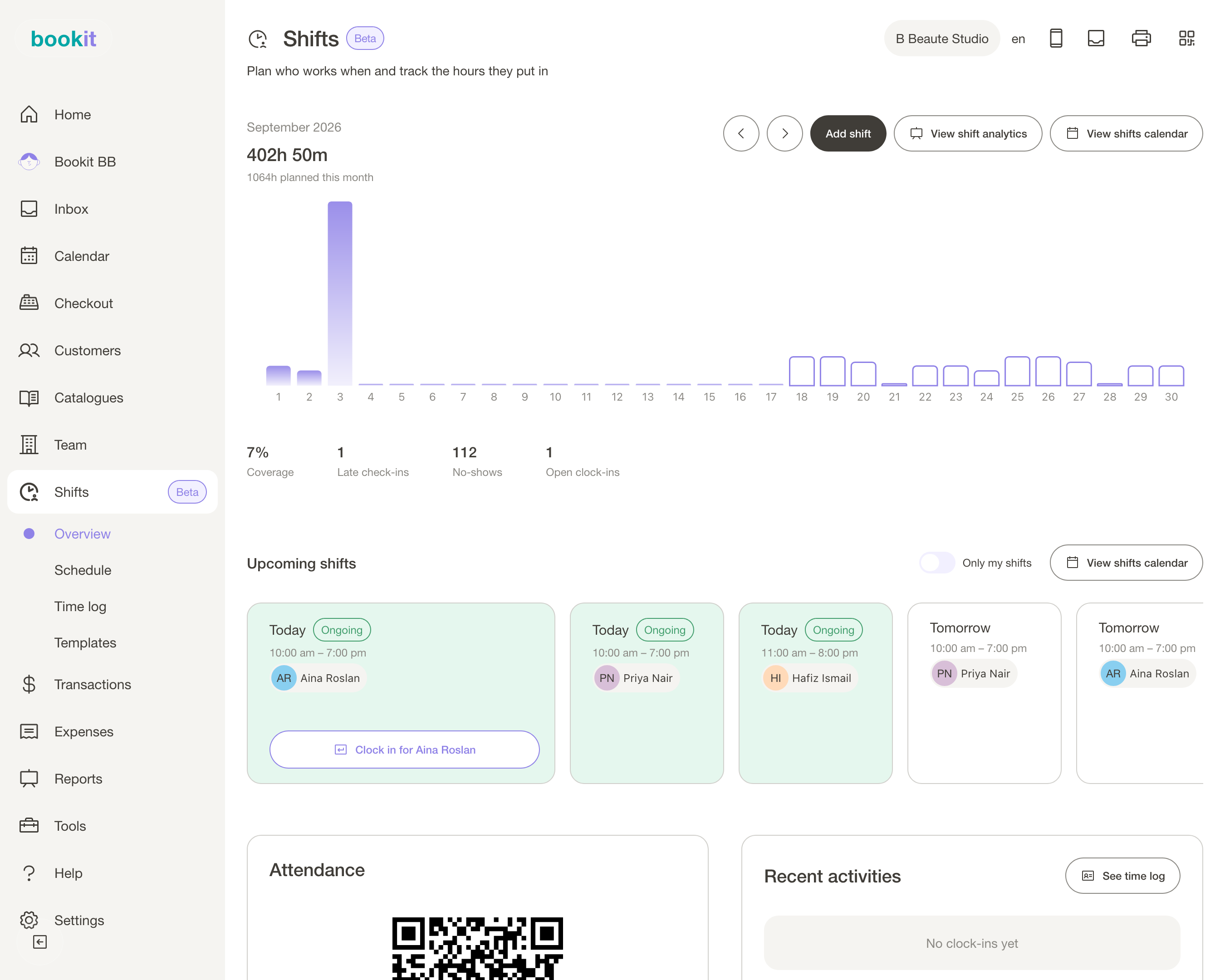
Shifts, then Overview, is the this-month glance: hours worked against hours planned, plus Coverage, Late check-ins, No-shows and Open clock-ins.
Reports, then Shift report, is the one you use for anything that matters. Pick your date range and get planned hours, worked hours, the difference, overtime, per-member breakdown, plus unlinked punches and open clock-ins. Filter to one person when they query their number. Download CSV for whoever does your payroll. Use Edit layout to put the cards you care about at the top.
Two things to know about the numbers before you read them:
- A "no-show" is a rostered shift with no punch against it. If someone was genuinely off and you never cancelled the shift, it shows as a no-show. Cancel shifts when plans change — the cancellation stays on the shift's history.
- Late means a clock-in after the shift start plus your grace. If you never set a grace, see above.
One thing worth knowing before you promise privacy: the Shift report follows your All reporting permission, not shift access. Anyone who can open reports sees the whole team's hours, whatever their shift permission says.
Where Shifts stops
Hours, not wages. Shifts records hours and stops there, deliberately — wages mean rates, EPF, SOCSO and deductions, which belong with your payroll. Hours are the part everyone can agree on. That is what the CSV is for.
Time off is a cancelled shift, for now. No leave balances yet. Cancel the shift and the cancellation stays on its history, so it never counts against anyone as a no-show.
Nothing is chased for you yet. No roster reminder, no late alert, no nudge about an open clock-in — watch the overview instead. This one is a gap, not a decision.
One branch at a time. Time log and report are branch-scoped, because coverage and lateness only mean something branch by branch.
Switching it on
Shifts is an add-on: RM12 per month per branch on Basic, Advance and Team, or RM100 per year per branch. See the pricing page, or add it from your subscription page and use it on that branch straight away.
Set aside twenty minutes for the settings, a week for getting everyone an account, and one full month before you read anything into the report. A report opened on day three shows an empty board.
Read next: templates, default schedules and reading the shift report — the parts you reach for in week three, once clocking in is a habit.
Want a hand setting it up? Message us on WhatsApp — we will do the branch settings with you in one sitting.