The first two weeks with Shifts are about getting people to clock in. By week three that part is quiet — everyone has the habit, the punches are landing — and a different question shows up.
You are still building the roster the slow way, one shift at a time, and it is Sunday night again. You have opened the shift report, seen six numbers, and are not certain what two of them mean. And the month is nearly over, so somebody has to work out what the part-timers are owed.
This is the follow-on to the setup guide. None of it is hard; it is just the half nobody finds on day one.
Three ways to fill a week
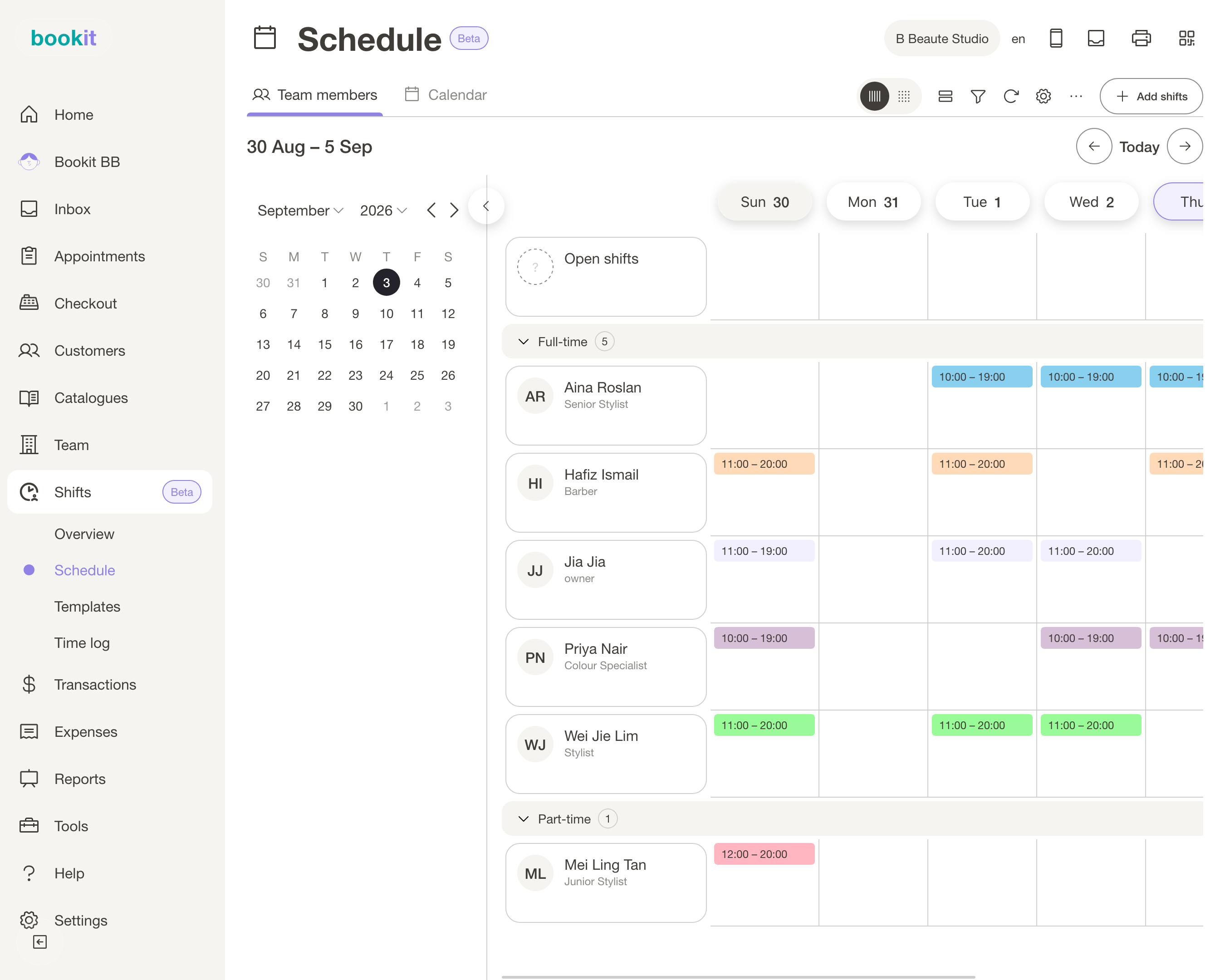
There are three, and the reason there are three is that they win in different situations.
| What it does | Use it when | |
|---|---|---|
| Add single shift | One person, one day, one set of times | Cover, a one-off, a change mid-week |
| Duplicate day / Duplicate range | Copies shifts that already exist onto other dates | Next week looks like this week, and this week is already right |
| Apply shift template | Fills days from a saved weekly pattern, or from your team's default schedules | The roster has a shape that repeats — which for most shops it does |
The trap is using the first one for everything. If you are typing the same three people into the same hours every Sunday, you are re-entering data you already had.
Duplicating gets you most of the way out of that, but it still needs a good week sitting there to copy from, and it repeats whatever was wrong with it too.
Set the hours once, on the person
This is the piece Shifts does that duplicating cannot, and the one most people miss.
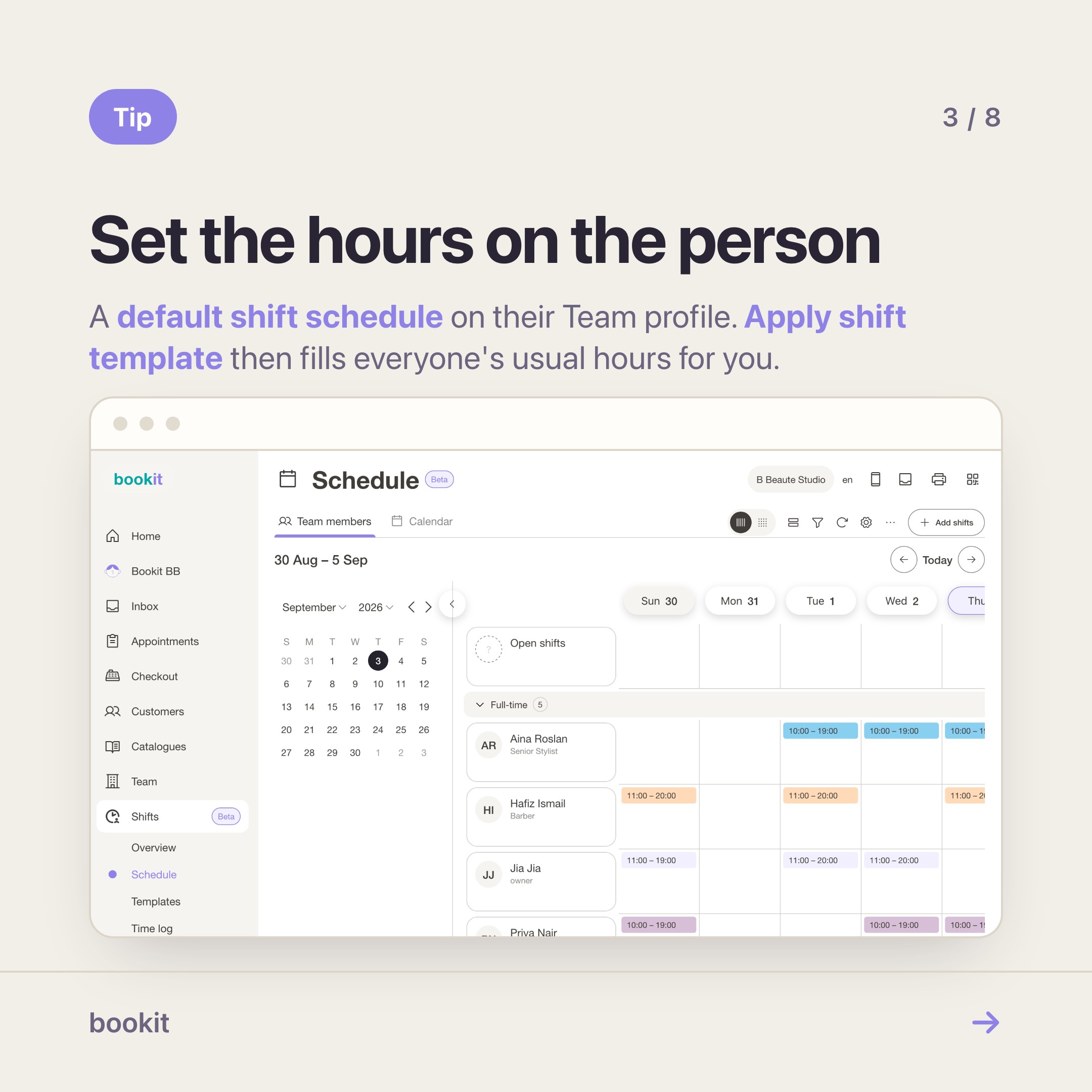
Open Team, open a team member, and set their Default shift schedule — their recurring weekly hours. Aina works Tuesday to Saturday, 10 to 6. You enter that once, on her, and it stays there.
Now on Schedule, Add shifts → Apply shift template fills days from your team members' default schedules, not from a pattern you drew. Everyone with usual hours gets them. You are left editing the exceptions, which is the only part that was ever genuinely new work.
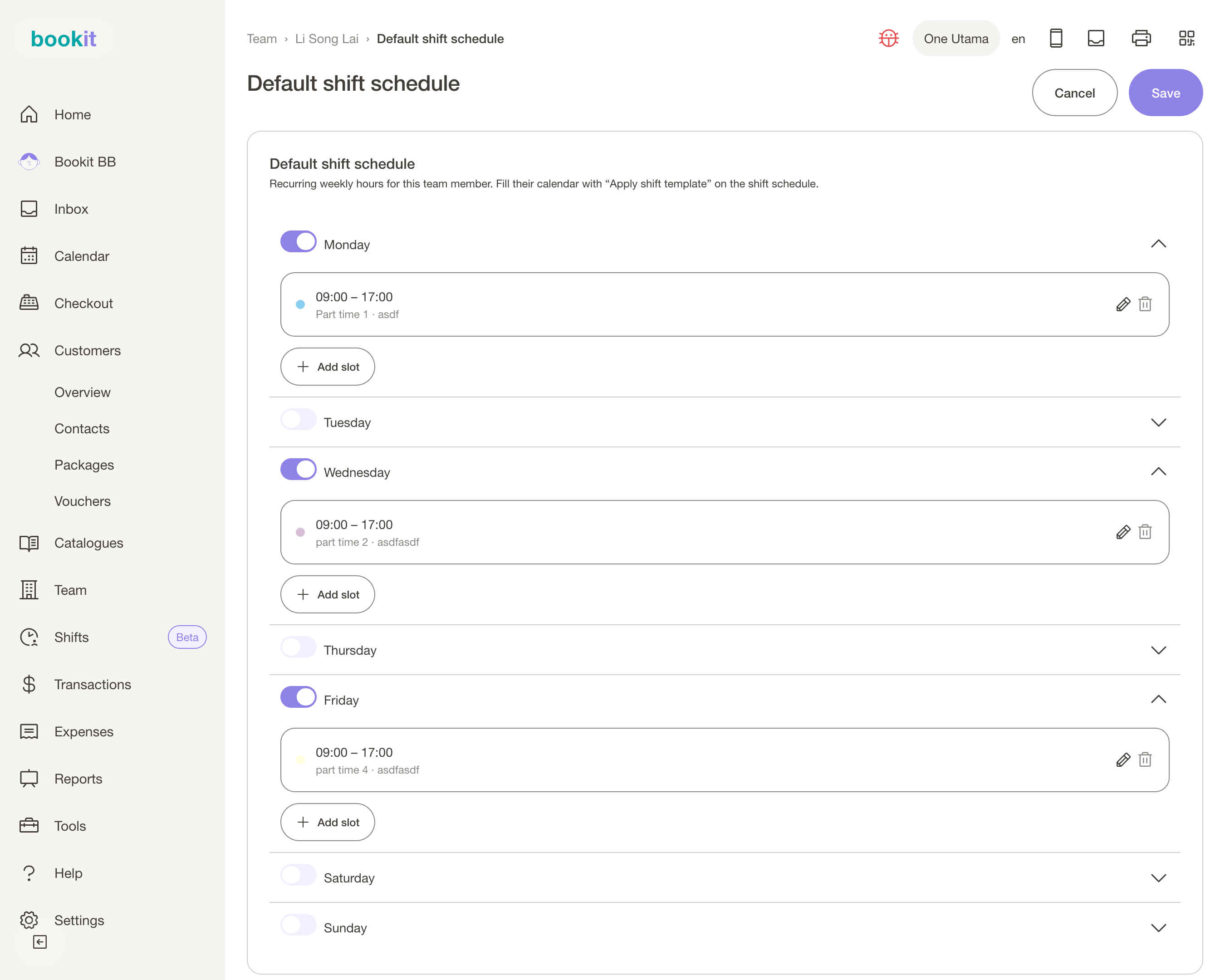
The difference in practice: duplicating copies last week, so last week's mistakes ride along. Default schedules describe the arrangement, so what fills the calendar is what you actually agreed with each person.
Save the good week as a pattern
Some rosters do not decompose into individual habits — a clinic with a late night on Thursday and a two-person Saturday has a shape that belongs to the week, not to any one person.
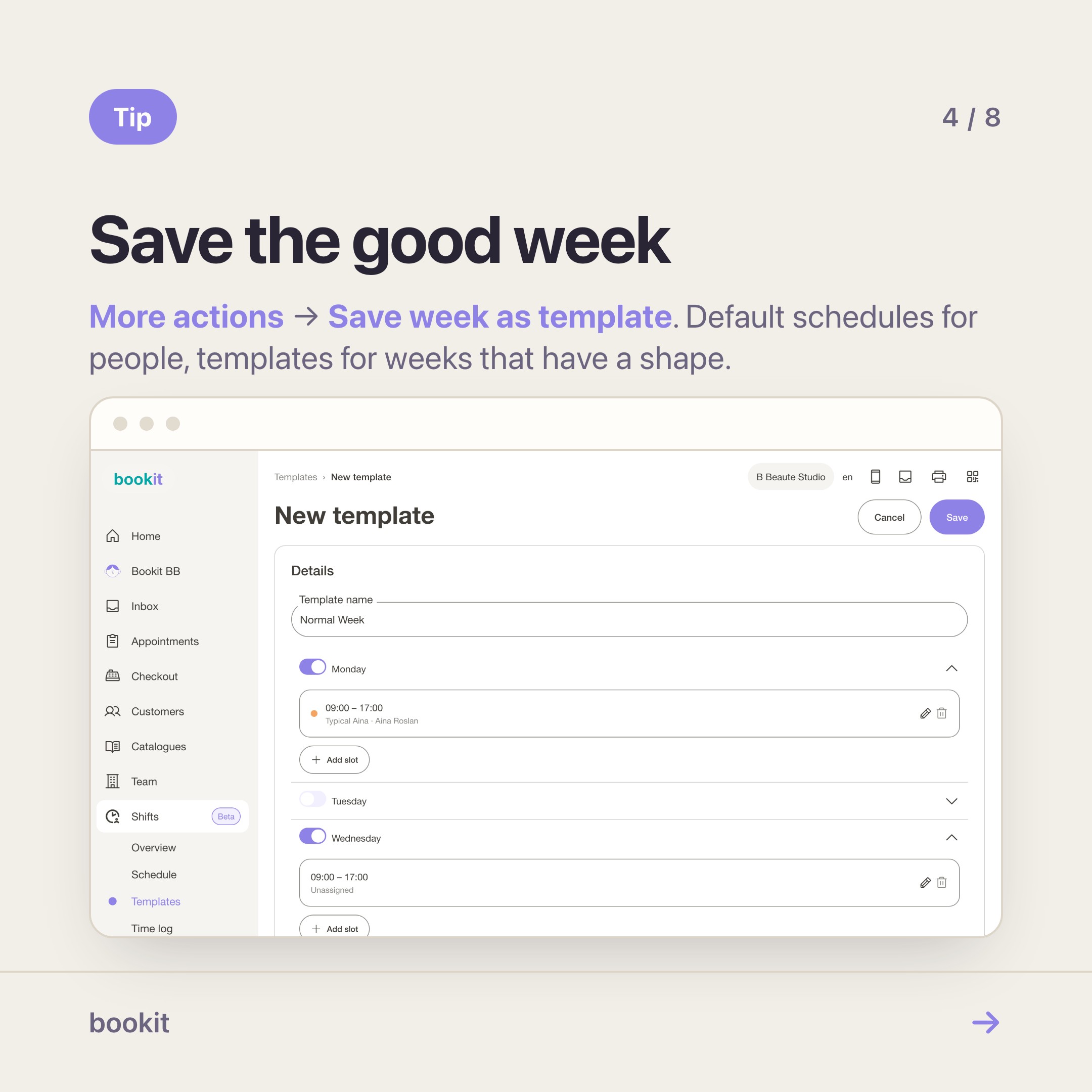
For that, build one good week, then More actions → Save week as template. It joins the Templates page and applies to any future week in one go, repeating across the span you choose.
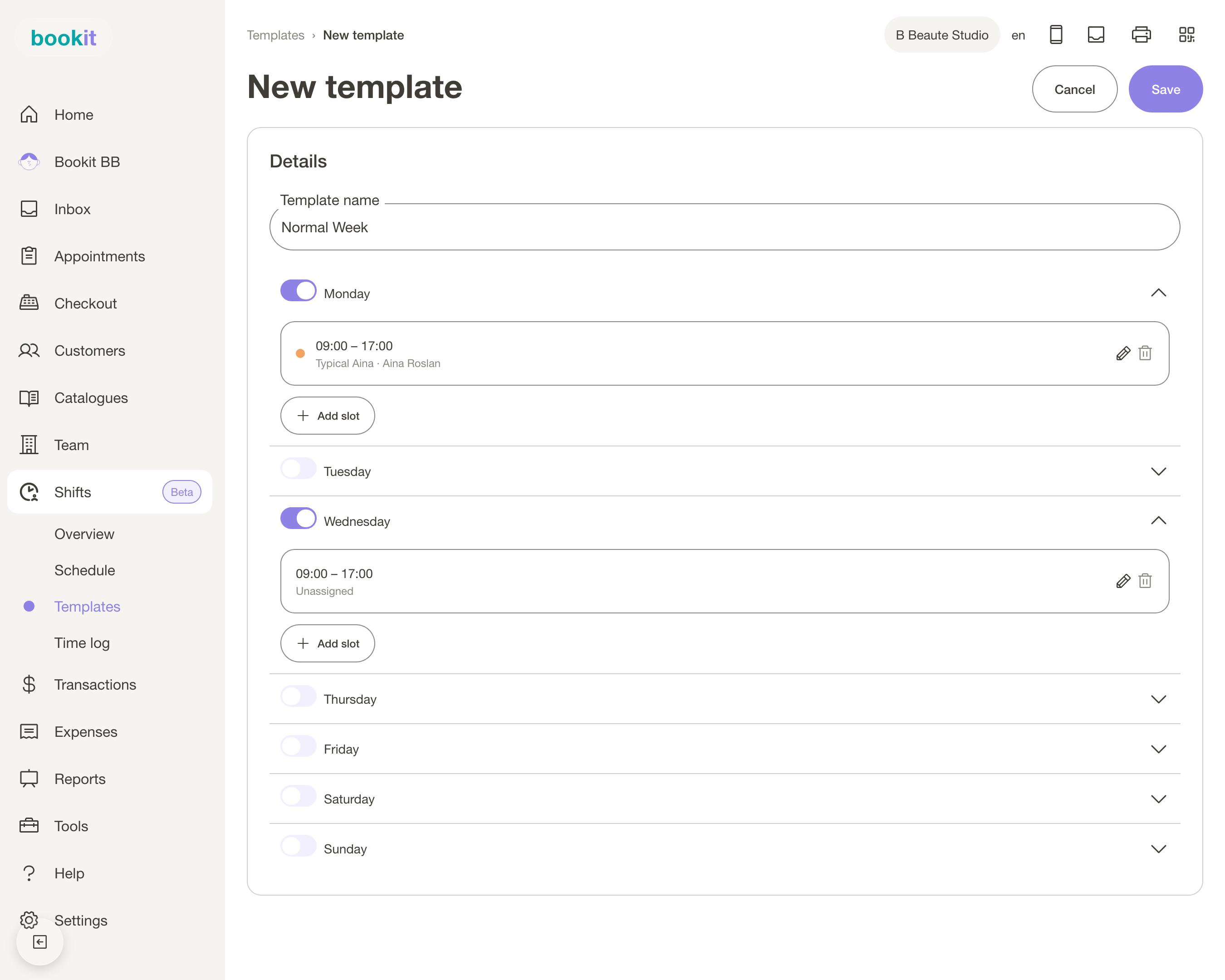
Rule of thumb: default schedules for people who work the same hours; templates for weeks that have a shape. Most shops end up using both — the template covers the skeleton, the default schedules fill the regulars, and you hand-add the rest.
One gap worth naming, because you will look for it: there is no "this person works these eight specific dates" bulk entry yet. That one is being built. Today it is duplicate, or a template, or one at a time.
Plan the gap before you know who fills it
You do not have to leave Saturday blank because nobody has confirmed. Add the shift with nobody on it — an open shift — and it sits on the schedule as a gap you can see, counts toward nothing, and gets a name when someone confirms.
This matters more than it sounds for the report. A gap you never rostered is invisible; an open shift is a gap you decided about.
The report, number by number
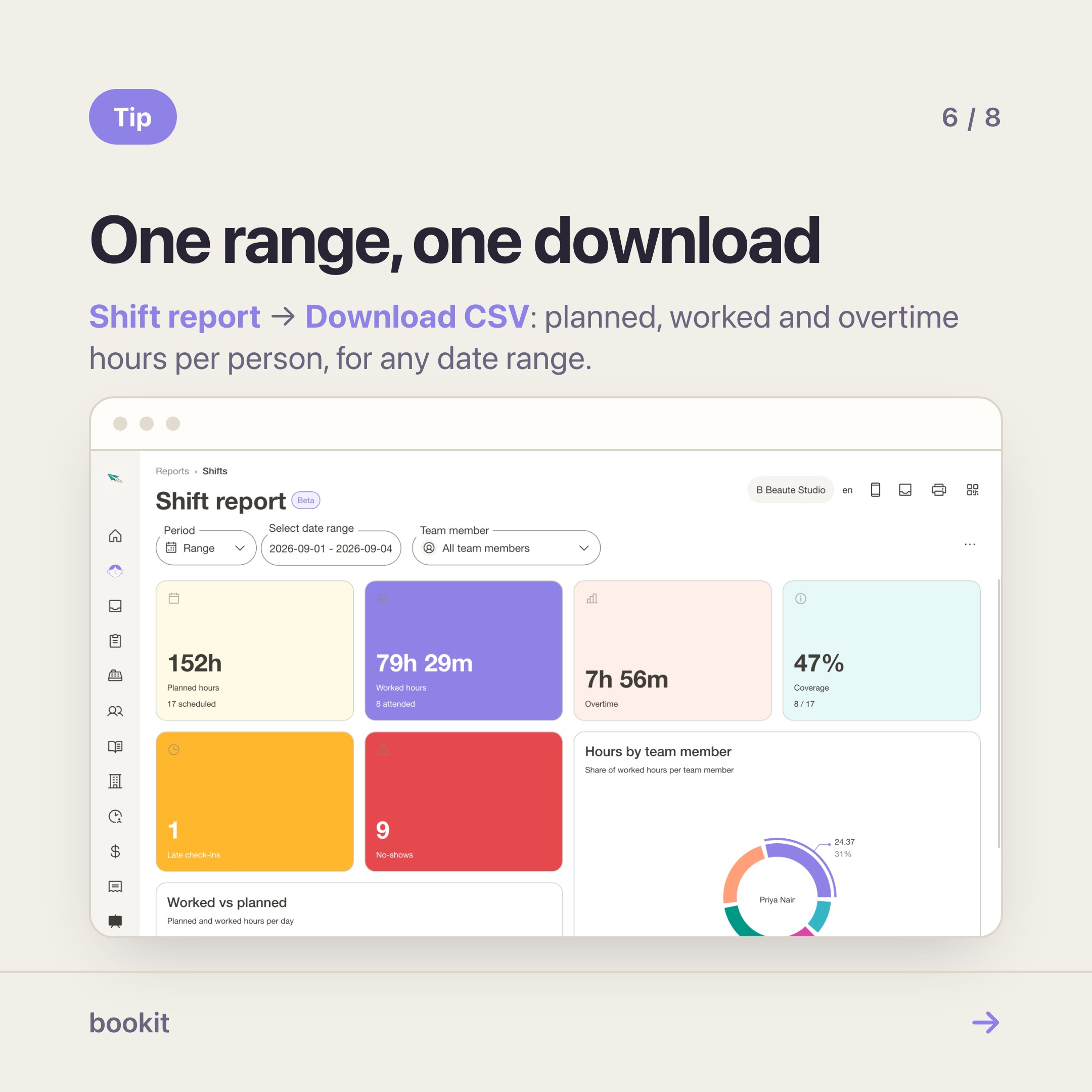
Reports → Shift report, any date range. It runs as a background job rather than instantly, so a wide range takes a few seconds to come back.
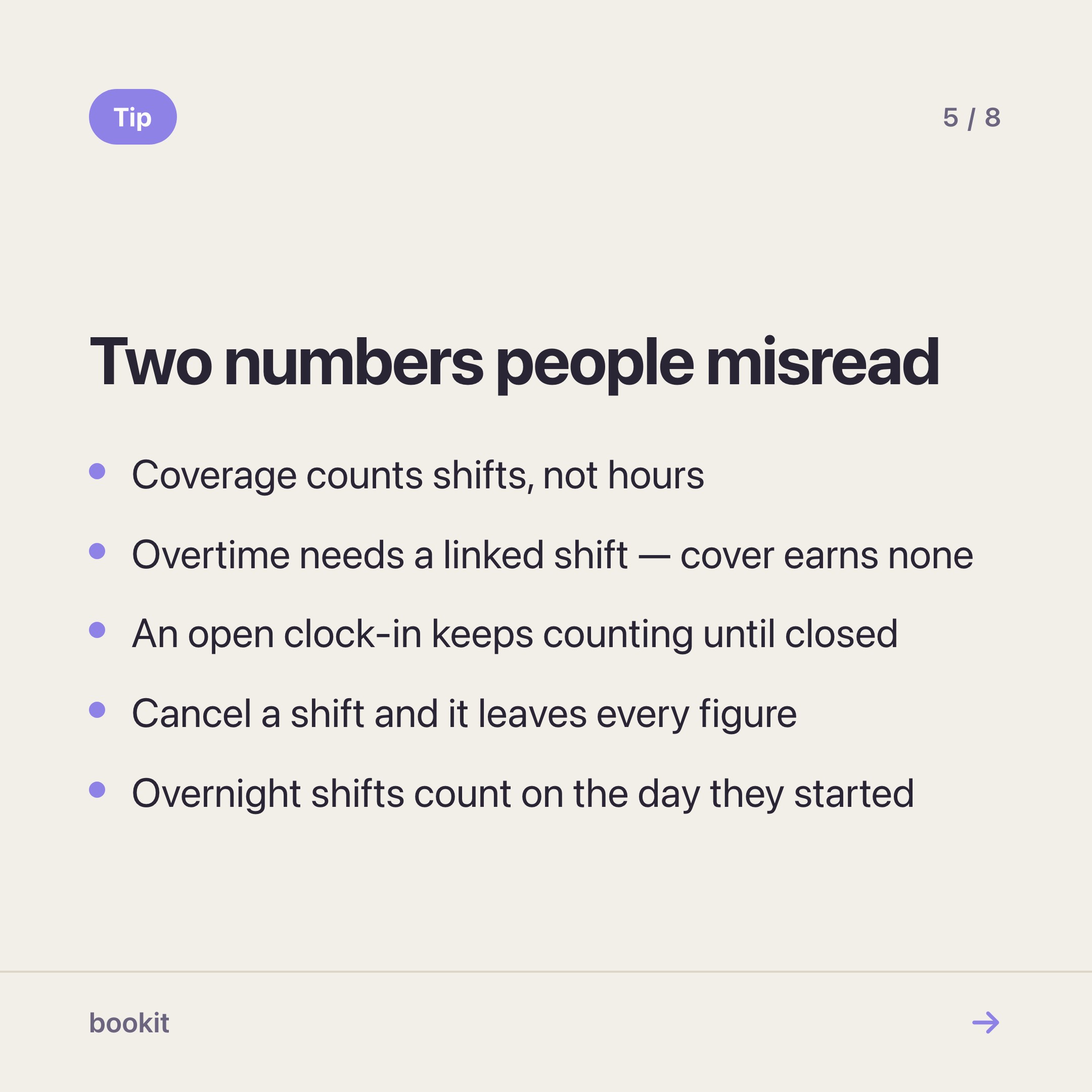
Six figures, and two of them are routinely misread.
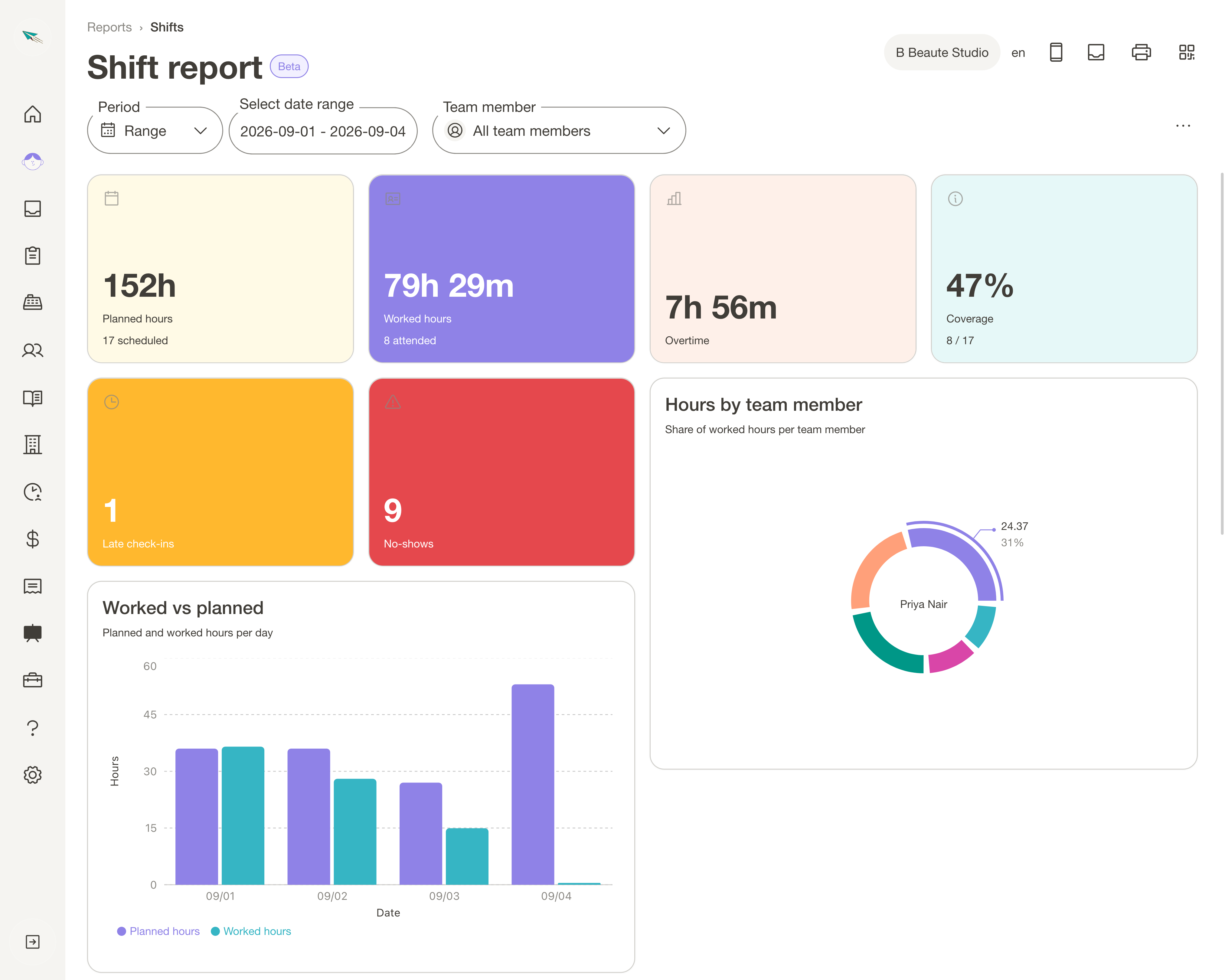
Planned hours — the sum of every rostered shift in the range. Cancelled shifts are dropped before anything is counted, so cancelling a shift for someone's day off leaves your figures clean rather than denting them.
Worked hours — the sum of every clock-in, whether or not it was linked to a rostered shift. Walk-in cover counts here.
Overtime — this is the one people misread. It is worked out per clock-in, against the shift it is linked to: anything beyond the rostered length. A clock-in with no shift behind it earns zero overtime, always. So if someone covered an unplanned six hours on Sunday, those hours land in worked hours and nowhere near overtime. If you want cover to count as overtime, put the shift on the roster — even after the fact.
Coverage — attended shifts ÷ scheduled shifts. It counts shifts, not hours. Six short shifts all attended is 100%, and a full day missed out of five is 80%. It answers "did the roster hold", not "did we get the hours in".
Late check-ins — clock-ins after the shift start plus your branch's grace. Needs a linked shift: an unlinked punch can never be late, because there is no start time to be late against.
No-shows — a rostered shift nobody clocked in against. Which is also how a shift someone was genuinely excused from shows up, if you forgot to cancel it.
Below the figures: worked against planned over time, hours by team member, the per-member table, and a needs attention card holding the two things that quietly distort everything — unlinked clock-ins and clock-ins still open.
An open clock-in keeps counting. A punch nobody closed accrues worked hours right up to the moment you run the report, so one forgotten clock-out on the 3rd can add a hundred hours to the month. If a number looks impossible, check there first.
Two more worth knowing: an overnight shift is counted whole against the day it started, and you can rearrange the cards with Edit layout — put the ones you actually read at the top, and reset it whenever.
The CSV, and paying part-timers from it
Top-corner menu → Download CSV. What comes out is a summary block, then one row per person:
| Column | What it is |
|---|---|
| Team member | Their name |
| Planned hours | What you rostered |
| Worked hours | What they actually clocked — this is the wage line for hourly staff |
| Overtime hours | Beyond the rostered shift length, on linked punches only |
| Coverage | Their attended shifts ÷ their scheduled shifts |
| Late check-ins | Count |
| No-shows | Count |
| Days | Distinct days they worked |
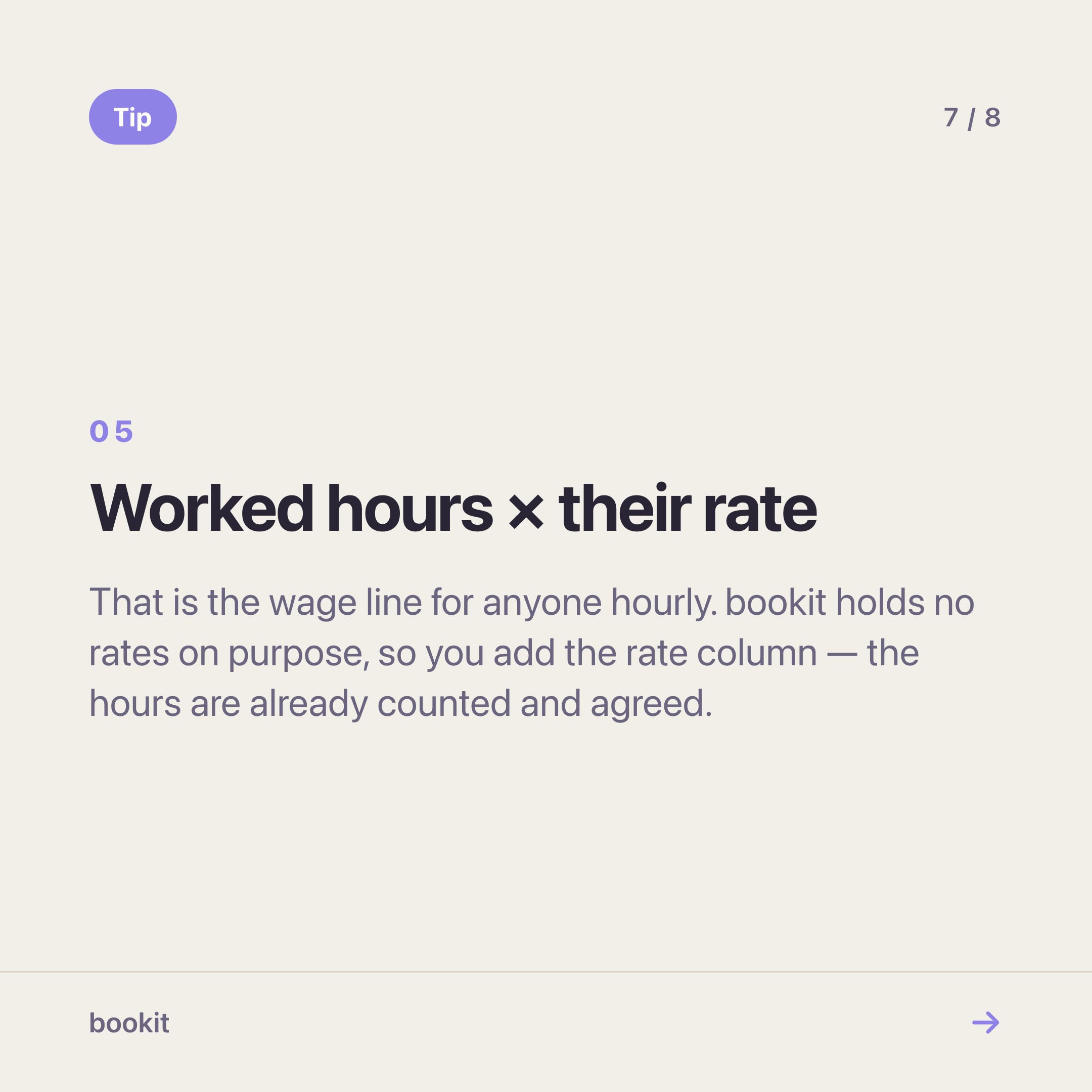
For a part-timer on an hourly rate, the calculation is worked hours × their rate, and it is one column of one file.
Open it in Excel or Sheets, add a rate column beside it, multiply. If you run a monthly cycle, set the range to the month and that file is the input for that person's pay.
Two things it deliberately does not carry:
No rates, so no ringgit figure. bookit holds no pay rates anywhere, which means nothing here is a wage until you or your accountant multiply it. That is the line we drew — hours are a fact both people in the room agree on, wages bring EPF, SOCSO and deductions with them, and those belong with payroll.
No per-day breakdown. The export is per person for the range, not a day-by-day timesheet. If someone queries a specific Tuesday, the answer is in Time log, not the CSV.
One thing to check before you share it
The shift report follows your All reporting permission, not shift access. Anyone who can open reports sees the whole team's hours, whatever their Shifts permission says. If you have a senior stylist who can pull reports, they can see what everyone worked. Worth knowing before it surprises you.
Where this leaves you
A sensible week three: default schedules on everyone with regular hours, one saved template for the shape of the week, and Sunday night reduced to editing the exceptions. Month end is one date range and one download.
If you have not got the basics running yet, start with the setup guide. If your team is mostly freelancers and part-timers, the arrangement side is here — accounts, booking rules and commission. And if you are still deciding whether any of this is worth it, start here.
Stuck on templates or reading a number that looks wrong? Message us on WhatsApp — send a screenshot of the report and we will tell you what it is counting.